Your Astro workspace
Import a project folder or create a site from an Astro template. Keep your projects, preferred agent and deployment target together.
The desktop workspace for studios and freelancers who deliver Astro sites: run Claude Code or Codex on any client project, then review the page, the diagnostics and the diff before you deploy.
Requires Node.js, npm and Git · AI features use your installed agent CLI
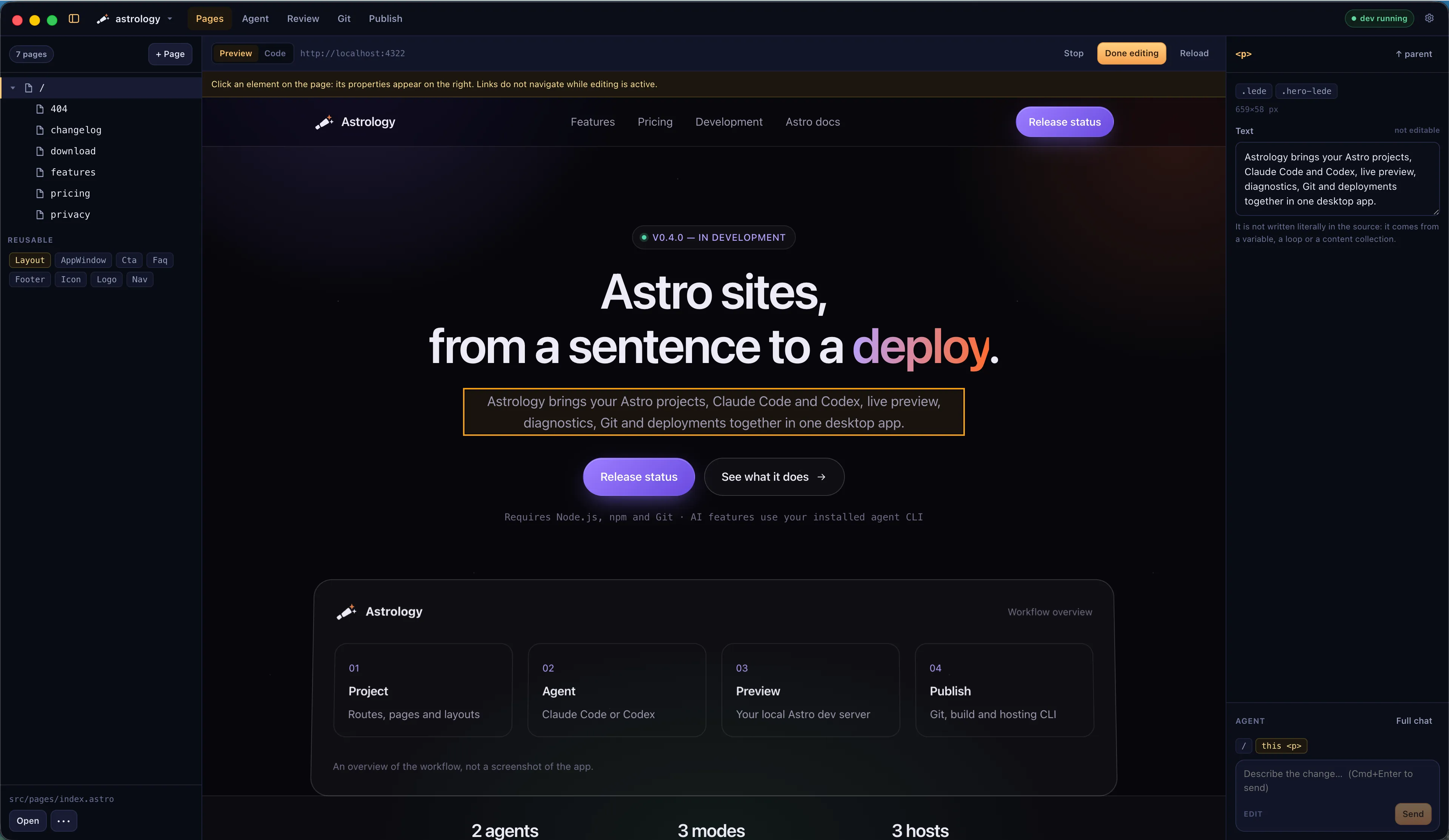
Explore your routes, work with an agent, inspect the result and follow your build and deployment output from the same workspace.
Import a project folder or create a site from an Astro template. Keep your projects, preferred agent and deployment target together.
Chat with either installed CLI in your project folder. Choose Propose, Edit or Autonomous mode and continue the conversation with follow-up prompts.
Explore routes, layouts, endpoints and detected content collections. The route tree updates as files change.
Switch between the live page and its highlighted Astro source. Edit and save the full file internally, or change supported literal text and attributes directly from the preview.
A composer under the properties column hands a request to the agent without leaving the page. Context chips say which page is open and which element is selected, so the request itself can stay short.
Opening a page starts the dev server; it stops a few minutes after the project stops being watched. A server that was already running is adopted rather than taken over.
A failed build, install or publish can be passed to the agent with its whole log. The repair runs autonomously so the agent can install and rebuild, and the preview tries again once the turn ends.
Create, duplicate, move and delete pages. Reuse a project layout for a new page and inspect references before changing a route.
Find missing images, broken internal links, translation gaps and dependency issues. Use the available automatic, agent-assisted or manual remedies.
Inspect repository status, a change summary and commit history. Commit, push and pull, or create a GitHub repository through GitHub CLI.
Run production builds and deploy through Vercel, Netlify or Cloudflare CLI. Preview and production actions use your host account and project configuration.
Check installed tools and authentication, inspect dependency updates and upgrade blockers, and follow command output in the logs.
Describe a page, a fix or a refactor to Claude Code or Codex. The agent works in the selected project folder. Review its output and test the result before committing or deploying.
---
import Layout from '../layouts/Layout.astro';
import TagList from '../components/TagList.astro';
import { getCollection } from 'astro:content';

const posts = (await getCollection('blog'))
  .sort((a, b) => b.data.pubDate - a.data.pubDate);
---

<Layout title="Blog">
  <ul class="posts">
    {posts.map((post) => (
      <li>
        <a href={`/blog/${post.id}/`}>{post.data.title}</a>
        <TagList tags={post.data.tags} />
      </li>
    ))}
  </ul>
</Layout>Choose a folder or an Astro template. Astrology checks the tools available on your computer and can install supported npm-based tools.
Use Propose to discuss a change, Edit to let the agent write files, or Autonomous for broader command access. AI requests use the agent CLI you have configured.
Follow the agent's output, check the page in live preview and inspect the Git change summary. Ask for the next change from the composer without leaving the page. Edit mode writes directly to the project; there is no mandatory per-file approval queue.
Write a commit message, push to your repository, build the site and deploy through your chosen hosting CLI. Each action has its own output and status.
The planned €99 Founding Members offer includes one year of updates and two active devices. You can keep using your version after that year. Renewal is planned at €99 for a further twelve months, counted from the later of today and your current update date. Purchase terms will be confirmed before sales open.
Yes. Choose its folder to add it to the workspace. You can also create a project from a template. Astrology works on the project files in that folder.
Claude Code and Codex CLI. Install and authenticate the agent you want to use. Astrology runs that CLI; it does not provide an API-key form, an included model subscription or a local-model selector.
No. Propose requests a read-only or planning session. Edit allows file changes, and Autonomous gives the agent broader command access. Inspect the results in preview and Git; file changes are not held in a separate approval queue.
The Code view edits and saves the complete source file. In the visual preview, Astrology can change literal text and supported attributes, such as links and image alt text, when the value has a unique source match. Generated or ambiguous values still require the Code view or an agent.
The working files stay in your project folder, but connected tools can send data over the network. Claude Code and Codex handle AI requests according to their configuration and provider policies. Git pushes and deployments send code or build output to the selected service.
Node.js, npm and Git are required. Use a Node.js version supported by your Astro project and agent CLI. GitHub CLI and your hosting CLI are needed for their respective features. Some initial installation and login steps happen outside Astrology.
Astrology detects your project's Astro version, but a tested compatibility matrix has not been published here. The current app is built with Electron. Supported operating-system versions and download architectures will be listed with a confirmed public release.
Explore the current features and check release availability and setup requirements.
Requires Node.js, npm and Git · AI features use your installed agent CLI